
TL;DR: 1. Sync your library (not really a backup and could fail) 2. Create manual ForScore backups and/or device backups 3. Export all your scores (most recommended).

For anyone who uses ForScore for iPad to read all their music scores, you’ll know how indispensable it can become. I use it almost daily, sometimes multiple times a day, for performing, teaching, practice and more. When something acquires such an irreplaceable part in your life, it’s worth asking yourself the question: am I looking after this well enough? What would happen if I lost it? In my case, I have 1,496 scores, amounting to nearly 1GB of data, so it’s quite a pertinent question.
I had to confront this question the hard way: I removed ForScore from my iPad, with all of its data. I did so as a temporary measure, in order to create enough space to update my iPad’s OS, thinking that I would be able to recover its data later through ForScore’s sync.
As it turns out, it doesn’t quite work like that…which, it turns out, ForScore’s documentation makes clear, although it’s not clear why it couldn’t in theory work like that.
ForScore uses iCloud to ‘sync’ data, although I have never found it to be reliable (I regularly have to switch the feature back on, and frequently still find that libraries don’t match up between devices). So, I should perhaps have had more caution before just deleting the app with its documents and data.
Therefore, if you’re thinking about creating a backup copy of your ForScore library, don’t do what I did, and rely on there being some kind of ‘synced’ copy up in the cloud somewhere that might mysteriously return to your device when you re-download it. Because, it didn’t.
So the first way isn’t really a way at all, which is to sync your files to iCloud. But, switch the feature on – you could do worse.
The second way to back up your scores, which is really twofold, is two different types of (actual) backups: 1. Device backups (usually performed via iCloud when the iPad is charging – but check that yours is working in your iPad’s settings) – this was how I rescued my data in the end, by reverting to an older backup of the whole device. 2. Create ForScore backup/archive files, and export them into your files so that you have a copy separate from ForScore which you can re-import to the app at a later date, should disaster strike.
ForScore also doesn’t make it super obvious what it’s doing when it backs up, which is one of the options in its settings.
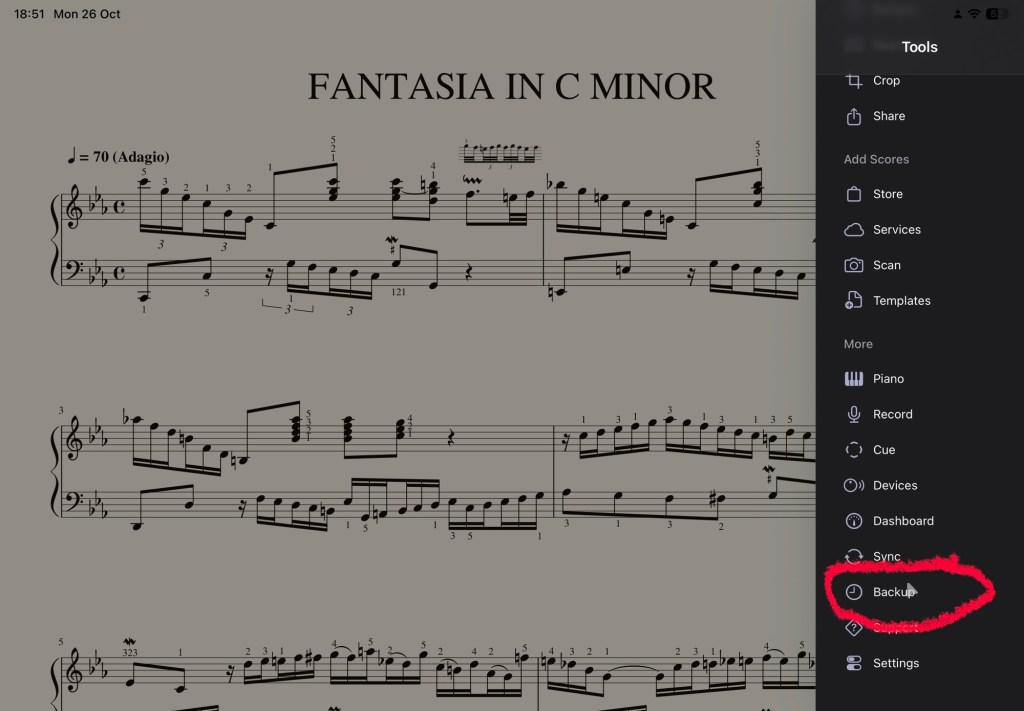
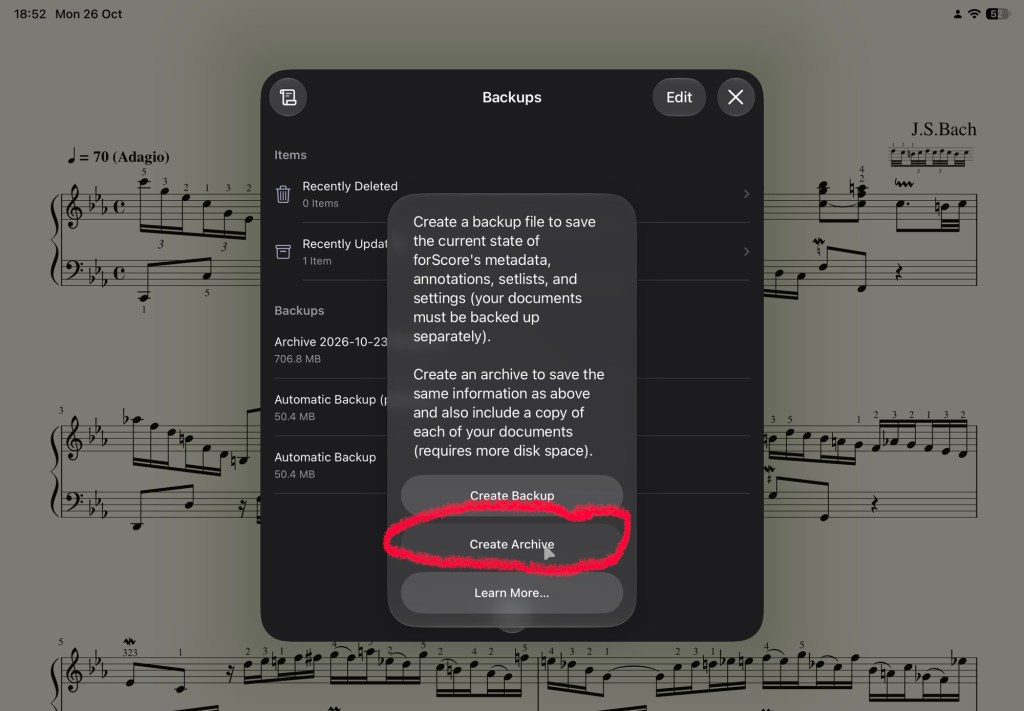
In the end, I discovered that you can create an archive file from ForScore, and then that archive can be exported to be saved outside of ForScore so that your backup in this case isn’t tied up with your instance of ForScore; because presumably, if you create an archive in ForScore but then delete the app and its data, that archive disappears with it. So you need to export it.
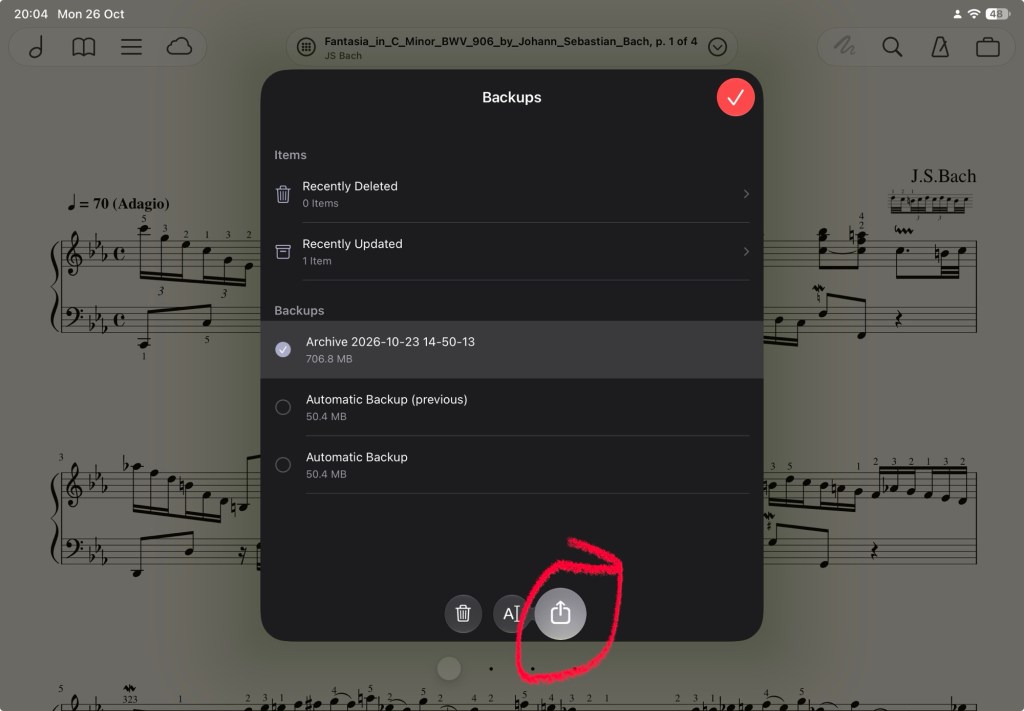
At that point it becomes a ‘4SB’ file – 4S presumably being short for ‘ForScore’, and B for ‘backup’. So it’s not strictly readable by any other apps, which is fine if you just want to make sure you have it for safe keeping should you ever need to set up ForScore from scratch with no internal backup or archive to restore from. In this case you would import your archive file back into ForScore to get up and running.
To be clear, creating an archive would create a complete data bank of everything you have saved in ForScore; a ‘backup’ in ForScore seems to create smaller files, so presumably is only capturing changes made since previous backups.
A ForScore backup file may be useful, but one caveat is that its content is not readable outside of the application; if you want to be able to access your PDFs via any other app, the backup file won’t help you. So, the third (and probably most sensible) way to back up your library is to export everything as PDFs.
I discovered the option to do this through the Cloud services button that appears in the top menu bar alongside your library, bookmarks and set lists.
Here you can add a cloud services button such as your Files app, and then choose to upload (you can also use this option to import files if you wish). When your library opens to select what to upload, tap on the three dots (…) and choose ‘select all’. Once you’ve tapped ‘Next’, you can then select whether you export annotated or original PDFs. ForScore will then proceed to compile PDFs – if it’s annotated you’ve selected, and you have 1,496 scores, it might take a while (just speaking from experience…). Eventually it will then open a save dialog for you to choose a location to save to, and boom, you’re done! You may have to wait a little patiently to watch it and make sure all the PDFs arrive in the folder. I wasn’t sure if ForScore would export it all as one PDF (one of the options when exporting a set list, for example), but I can confirm it exported individual files, one for each score, as expected.
So whether you do this, or just create the 4SB backup file, or just hope to rely on your device’s backup, one way or another, make sure you have a backup! I’d definitely recommend taking the extra steps to make sure you have additional copies of your data to access in other ways, if you can.
Obviously this is something to do not just once, but periodically as your library grows. Any time you add a large amount of files – say for a new show you’re learning, or when adding a batch of teaching materials – that would be a good trigger for backing up your library. You could also set a reminder to recur at some kind of regular interval, depending on the growth rate of your library.


