Remove the (click and) drag from your Sibelius workflow, by mastering keyboard shortcuts.
The user interface of Sibelius has always been supremely graphical, with deep support for your trusty mouse: with quick actions under the right-click, allowing the click-and-drag of the score to navigate, and since the days of the ribbon (cough) promoting big buttons with graphical representations to access its functions.
Nevertheless, any amount of time spent in Sibelius clicking around will quickly lead to wrist strain or mild forms of RSI (let’s hope you’ve avoided the more serious forms of it). Thankfully, Sibelius also has deep support for keyboard shortcuts, and nearly all the functions you’ll want to perform in the course of creating and editing a score can be achieved using the keyboard, if you know how. Keyboard shortcuts that you learn (or indeed create) soon become muscle memory, and there’s no harm in creating your own little library of shortcut reminders, in case you need a refresher.
But to begin with, you’ll find all the shortcuts listed under their function names inside Sibelius’ preferences.
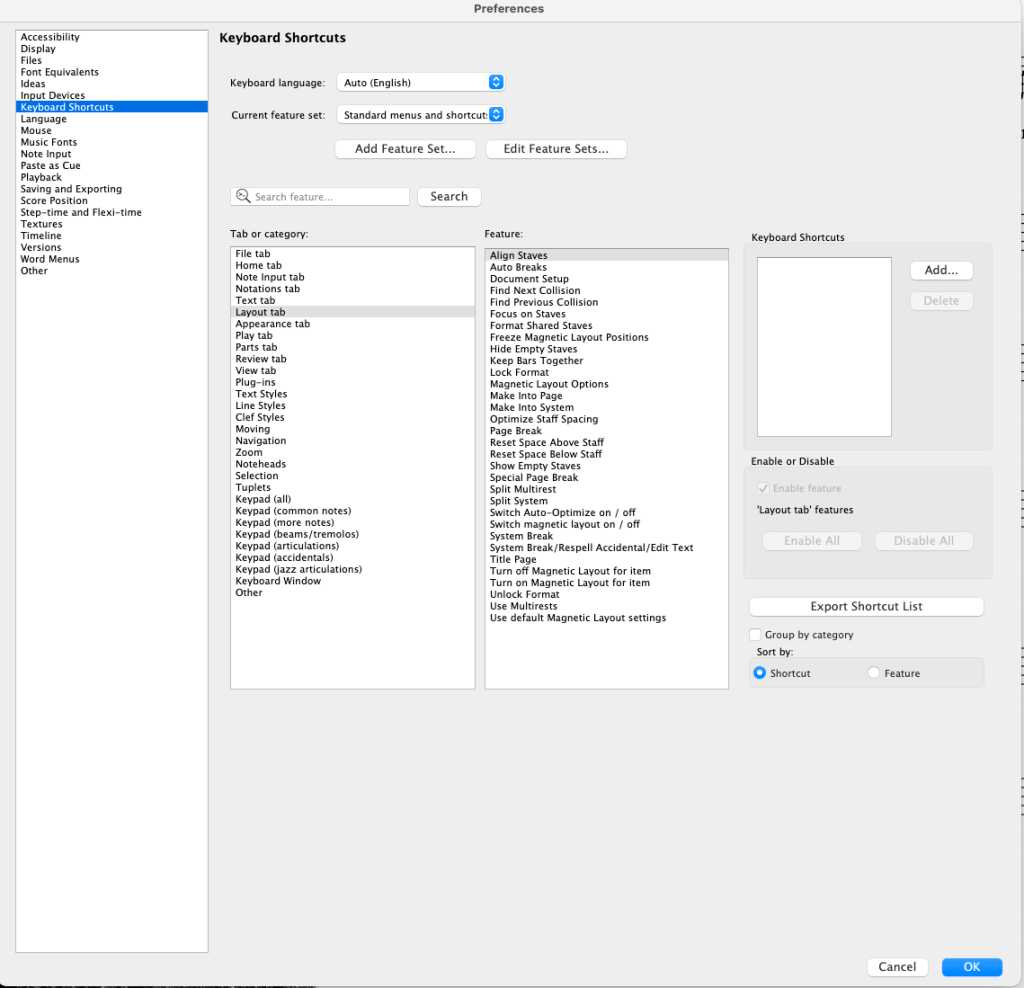
I’m delighted to say that, as of one of the most recent versions of Sibelius, the pane now includes a search field to help you quickly find the function you want to learn (or assign) the shortcut to. I did suggest this feature recently, but I expect others did too, or it was already on their whiteboard, so I’m not going to take credit… it was just long overdue.
Getting started with Sibelius’ keyboard shortcuts
(All the examples I’ll give use the Mac version of shortcuts so, where ‘Cmd’ for ‘Command’ appears, this is usually replaced by ‘Ctrl’ (Control) for Windows users.)
The keyboard shortcuts preference pane is the best place to start when learning keyboard shortcuts. I’d recommend familiarising yourself with some of the selection shortcuts (listed under the Home category: Cmd+A, Cmd+Shift+A to select more, etc.), Navigation (the page-up/down and home/end keys are insanely useful ways to get around your score – much better than clicking and dragging, or using scroll wheels) and Zoom shortcuts, and the Filter shortcuts (also listed under Home). While you’re learning shortcuts, take the time to write down the ones you want to learn – just a few at a time might work best – or create a digital note somewhere you can access it again to aid your memory.
Importantly, if you use a notebook, you’ll want to make sure you set the correct Feature Set. Go to the ‘Current feature set’ dropdown menu and select Notebook (laptop) shortcuts. Even without things like the numerical keypad, there are ways to navigate your score and enter notes that have been programmed especially for notebook users.
Apart from learning shortcuts through the preference pane, you will also notice that shortcuts appear next to functions when they are listed in the Command Search field and the right of the ribbon. To enter that field, don’t use the mouse! Just hit comma (,) and start typing. Here’s what it looks like when the results show keyboard shortcuts.

And when you ‘hover over’ functions listed in the toolbar, these display their shortcuts too.

Plug-ins drop-downs in the various ribbon tabs, and the Commands drop-down in the Home tab, also display shortcuts where they exist.

Create your own shortcuts in Sibelius!
Once you get the hang of it, you’ll definitely want to start creating additional shortcuts for access to your most commonly used features. For this you’ll want to go back to that preference pane (Cmd+comma for preferences, by the way). But, before you start selecting functions and assigning your own shortcuts, there’s something you’re going to want to do first: create a Custom feature set! (Click Add Feature Set…)
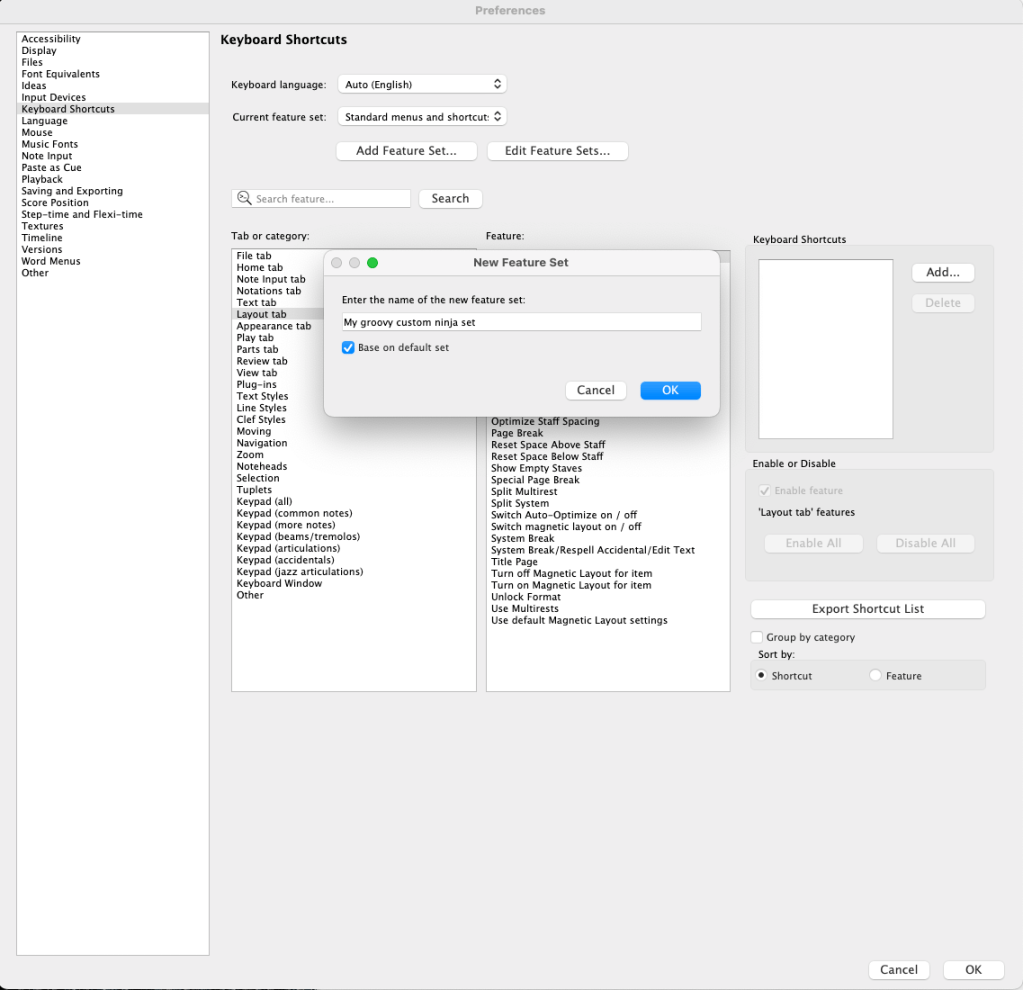
For sure you’ll want to make sure the box is checked that says ‘Base on default set’ otherwise, I believe, you’ll be starting from scratch, with zero shortcuts assigned to anything. That might be overkill.
As an example, under ‘Text Styles’ I have created a shortcut for the style ‘Musical structure’ because that is something I work with all the time, in producing a lot of song charts and lead sheets. My shortcut is Alt+Shift+M. More on this below (it gets juicier).
A couple of my other custom shortcuts are for filtering chords and lyrics. Filtering dynamics is already assigned Alt+Shift+D by default in Sibelius, so I assigned Alt+Shift+K to chord symbols (K because Cmd+K is chord symbol entry) and Alt+Shift+L for lyrics. It makes it easier to remember. Once you have learnt one thing, assigning similar shortcuts to related actions really helps.
Additional Sibelius keyboard hacks
Key labels (uh I think that’s what they’re called…)
Not only do you have standard keyboard shortcuts, you also have key labels at your disposal. Hitting the Ctrl key (you don’t have to hold it down) reveals small letters next to the tab layer of the ribbon; once you’ve selected which tab you want by hitting the relevant key, another layer of key labels is revealed for the various functions in that tab. Hit those key combinations to access that feature.

Add keyboard shortcuts to Word Menus
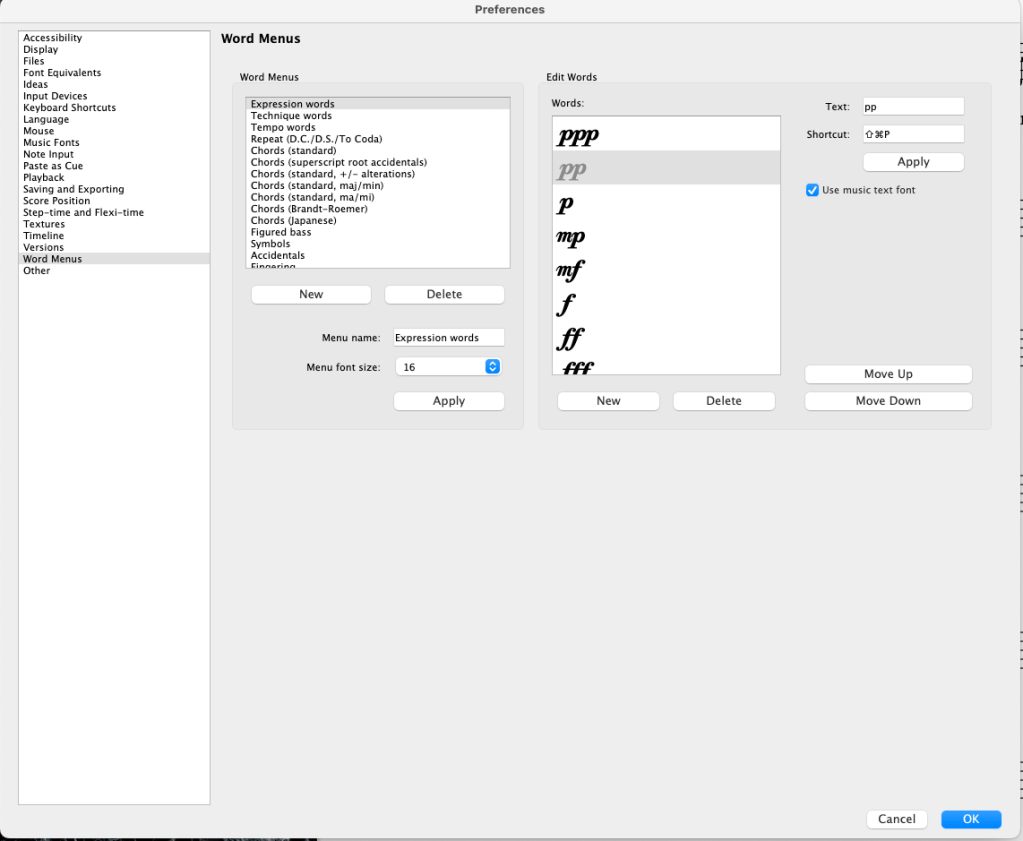
When you’re entering text, Word Menus give you a host of options underneath your right-click. For example, while entering dynamics (Expression text), a right-click gives you a drop down of lots of possible dynamic markings for easy access. But you can also assign keyboard shortcuts to these, and they appear alongside their listing in the right-click menu. Many people know that Cmd+F gives you forte when entering Expression text, and Cmd+P, piano. But there are a host of other options, and for items you use regularly, you can assign keyboard shortcuts. Again, you have to be entering Expression text to access these keyboard shortcuts, otherwise they might fire off a different command in Sibelius; the same keyboard shortcut, in other words, could be used by multiple items across different Word Menus, and by some other command within Sibelius. As long as you’re in text-entry mode, the shortcut will respect that Word Menu’s shortcuts as you’ve assigned them. Just go to the Word Menus preference pane, find the correct menu and the item you want to assign a keyboard shortcut to, and enter it in that field. Here, I’ve made pianissimo to be Cmd+Shift+P. If I wanted, I could make ppp to be Cmd+Shift+Alt+P. I could do the same with ff and fff.
Remember that I assigned the ‘Musical structure’ text style to Alt+Shift+M? Well, that style has a word menu, so in there I assigned Alt+Shift+V to Verse, …C to Chorus… and so on. So that now with the Alt and Shift keys held down, after hitting M, I just hit V, or C, or I (for Intro), or B (for Bridge) etc., and the complete text of that section name shows straight away.
Hotkeys
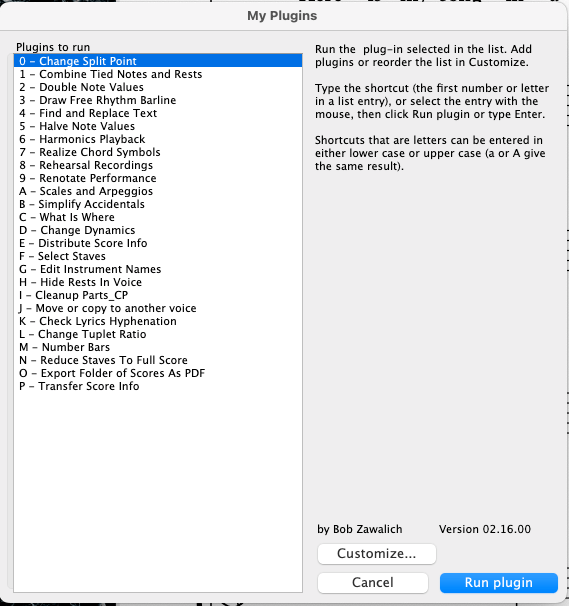
Some plug-ins allow you to access their functions through hotkeys. An obvious and favourite example of mine is the ‘My Plug-ins’ plug-in, which might more accurately be named ‘My Favourite Plug-ins’. It allows you to create a list of plug-ins you want quick access to. Each item in that list is then assigned one letter of the alphabet or a number 0-9, giving you up to 36 slots. I’ve assigned ‘My Plug-ins’ to ‘V’ on my keyboard (as that was otherwise untaken), which immediately launches it. So V followed by whichever letter is assigned to the plug-in I want is a really quick 2-step method to access powerful functions.
Navigate your dialogue windows
The tab key and up/down arrows are your friends here, as well as the good old enter key; and if you’ve navigated to a long list of words (e.g. the many text styles in the Edit Text Styles window), just start typing the name of the style you want to edit, to jump straight to it. Boom!
Summing up
Once you’re flying with keyboard shortcuts, your mouse might hardly get a look-in. From note-entry, through dynamics and other text, lines, symbols and so much more; for navigating around your score, and switching between parts, almost everything can have a keyboard shortcut. Just about the only thing I need the mouse for is quickly starting a selection; but even then, once I’ve got it started, the keyboard usually helps me expand the selection accordingly, and once it’s selected, it’s back to the keyboard for whatever I want to do with that selection. I’m quicker and more efficient, and less likely to develop RSI!

 ben trigg music